Top
Information to Know Before Starting
Before starting to use these configuration notes, complete the following table to make sure you have the required information to complete the different steps.
| Information | Value | Used in Step |
|---|---|---|
| Temporary IP address used by your Mediatrix unit to communicate with the Management Interface. | DHCP server- provided IP address | Logging on to the Mediatrix Unit Web Interface |
| Final Static LAN IP address as defined in your network address range. | Configuring the Uplink Network Interface | |
| Static Default Router IP address of the Uplink Network Interface | Configuring the Default Network Gateway to a Static IP Address | |
| IP address of each DNS server | Configuring the Domain Name Server (DNS) | |
| IP address of each SNTP server | Configuring the SNTP Server to a Static IP Address | |
| Public IP address of router/firewall | Configuring the uplink_s Signaling Interface | |
| IP address or FQDN of the service provider server | Configuring the wan_ip_trunk_ca Call Agent | |
| Username and password for the SIP trunk (optional) | Configuring the wan_ip_trunk_ca Call Agent | |
| IP address of the IP PBX | Configuring the lan_ip_pbx_ca Call Agent | |
| Make sure you have the latest rulesets from the Media5 Support Portal |
|
Importing Rulesets |
Top
SBC SIP Trunking Configuration - Sentinel in the LAN
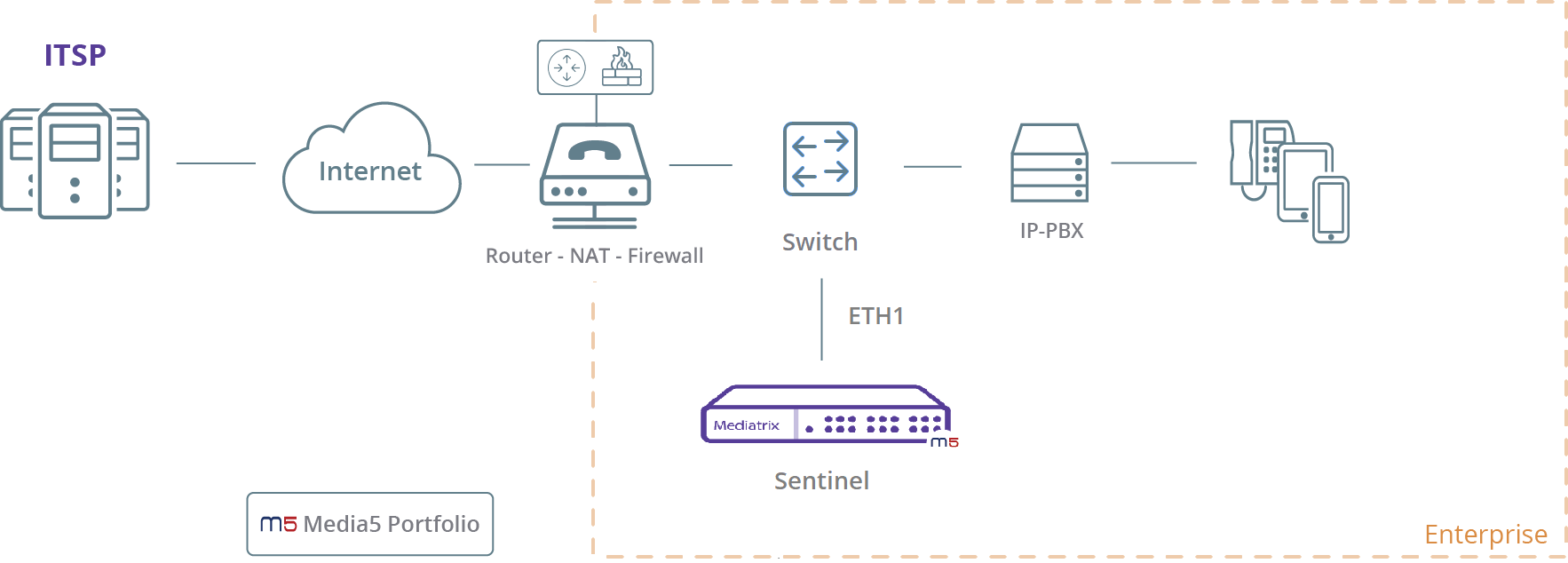
- The Sentinel unit is located in the LAN.
- Only port ETH1 of the Sentinel is used.
- The Sentinel unit is set as a Demarcation point.
- The Sentinel unit may or may not register to the SIP service provider.
- The Sentinel unit is located in the LAN, behind a Near-End NAT.
Top
Important Information on NAT, Interfaces, and Ports
Since this scenario uses only one physical network interface (ETH1) for communicating both with the ITSP/Public Internet and the IP-PBX, different ports will need to be assigned to the signaling and media interfaces for the Sentinel to differentiate the traffic.
- On the ITSP/Public Internet side, port 5060 is used for signaling with the 20000-20999 range for media. The router/firewall will need to be set up to allow connections from the ITSP/Public Internet on these ports, and set up port forwarding to the Sentinel internal IP address.
- On the IP PBX side, port 5064 is used for signaling with the 21000-21999 range for media. Depending on the PBX, this can be accomplished by either creating a SIP trunk on an alternate port, or in the Outbound Proxy configuration.
Top
Logging on to the Mediatrix Unit Web Interface
Top
Configuring the Uplink Network Interface

Top
Configuring the Default Network Gateway to a Static IP Address

Top
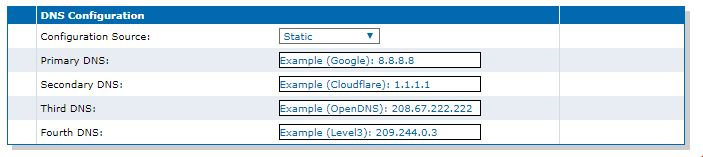
Configuring the Domain Name Server (DNS)
- Go to Network/Host.
- In the DNS Configuration table, form the Configuration Source selection list, select Static.
- For each DNS used, enter the IP address of the DNS.
- Click Apply.
Top
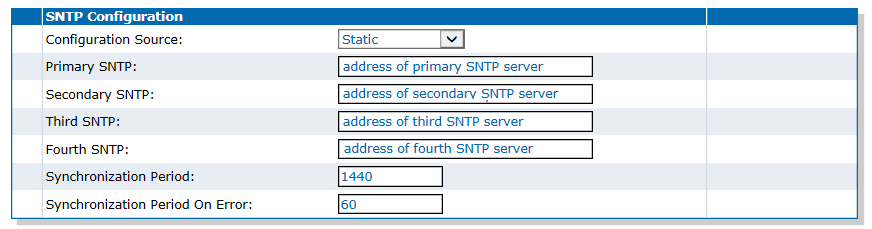
Configuring the SNTP Server to a Static IP Address
Top
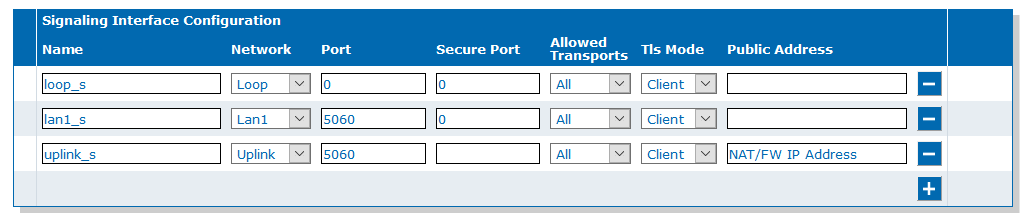
Configuring the uplink_s Signaling Interface
Top
Configuring the uplink_m Media Interface

Top
Configuring the pbx_s Signaling Interface
-
In the Signaling Interface Configuration table, click
 to create a new interface.

Top
Configuring the pbx_m Media Interface
-
In the Media Interface Configuration
table, click to create a new interface.

Top
Importing Rulesets

Top
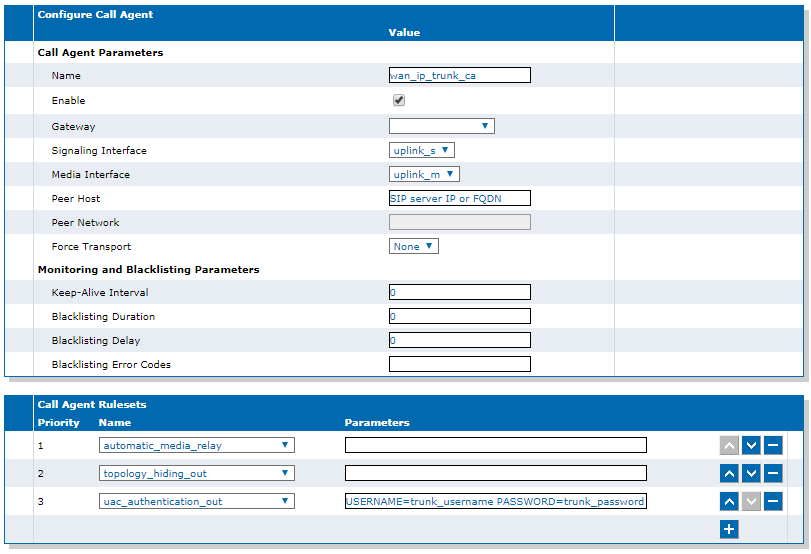
Configuring the wan_ip_trunk_ca Call Agent
-
In the Call Agent Configuration
table, click
 next to wan_ip_trunk_ca.
-
In the Call Agent Rulesets table,
click to insert a new ruleset entry.
Note:You can ignore the "Invalid configuration" and "Unknown ruleset" warnings. They will dissapear when the configuration is saved.
-
Click .
-
If your SIP trunk requires authentication:
-
Click .
- From the Name selection list, choose uac_authentication_out.
- In the Parameters field, enter USERNAME=trunk_username PASSWORD=trunk_password corresponding to the username and password used for authentication.
-
Click
Top
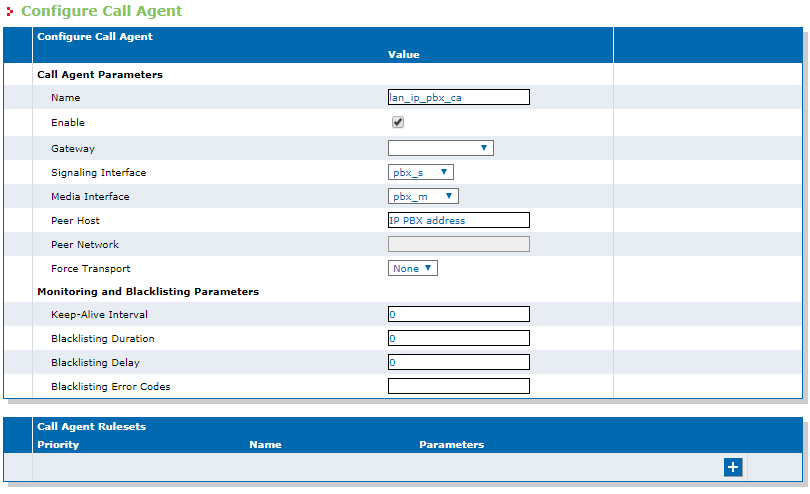
Configuring the lan_ip_pbx_ca Call Agent
- Go to SBC/Configuration.
-
In the Call Agent Configuration
table, click next to lan_ip_pbx_ca.
-
In the Configure Call Agent table,
complete the fields as follows:
- Select the Enable check box.
- From the Signaling Interface selection list, select pbx_s.
- From the Media Interface selection list, select pbx_m .
- Set the Peer Host to IP address of the IP PBX.
- Click Save.
- Click Apply to apply all changes to the configuration.
Top
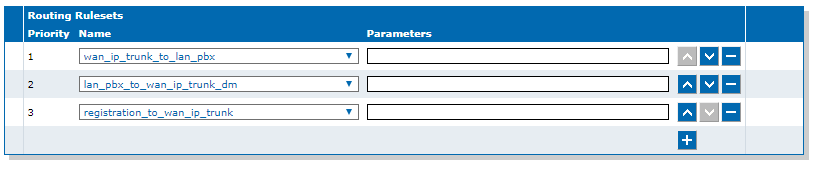
Associating Routing Rulesets to Your Configuration
-
In the Routing Rulesets table, click to add a new entry.
Note:You can ignore the "Invalid configuration" and "Unknown ruleset" warnings. They will dissapear when the configuration is saved.
-
Click .
-
If your SIP trunk requires registration:
-
Click .
- From the Name selection list, select registration_to_wan_ip_trunk.
-
Click
Top
Configuring a Registration Agent (Optional)
If your ITSP requires registration, configure the registration agent for your account.
-
In the Registration Agent Configuration table, click .
Note:A new line of fields is added.

Top
DGW Documentation
Mediatrix devices are supplied with an exhaustive set of documentation.
Mediatrix user documentation is available on the Media5 Documentation Portal.
- Release notes: Generated at each GA release, this document includes the known and solved issues of the software. It also outlines the changes and the new features the release includes.
- Configuration notes: These documents are created to facilitate the configuration of a specific use case. They address a configuration aspect we consider that most users will need to perform. However, in some cases, a configuration note is created after receiving a question from a customer. They provide standard step-by-step procedures detailing the values of the parameters to use. They provide a means of validation and present some conceptual information. The configuration notes are specifically created to guide the user through an aspect of the configuration.
- Technical bulletins: These documents are created to facilitate the configuration of a specific technical action, such as performing a firmware upgrade.
- Hardware installation guide: They provide the detailed procedure on how to safely and adequately install the unit. It provides information on card installation, cable connections, and how to access for the first time the Management interface.
- User guide: The user guide explains how to customise to your needs the configuration of the unit. Although this document is task oriented, it provides conceptual information to help the user understand the purpose and impact of each task. The User Guide will provide information such as where and how TR-069 can be configured in the Management Interface, how to set firewalls, or how to use the CLI to configure parameters that are not available in the Management Interface.
- Reference guide: This exhaustive document has been created for advanced users. It includes a description of all the parameters used by all the services of the Mediatrix units. You will find, for example, scripts to configure a specific parameter, notification messages sent by a service, or an action description used to create Rulesets. This document includes reference information such as a dictionary, and it does not include any step-by-step procedures.
Top
Copyright Notice
Copyright © 2026 Media5 Corporation.
This document contains information that is proprietary to Media5 Corporation.
Media5 Corporation reserves all rights to this document as well as to the Intellectual Property of the document and the technology and know-how that it includes and represents.
This publication cannot be reproduced, neither in whole nor in part, in any form whatsoever, without written prior approval by Media5 Corporation.
Media5 Corporation reserves the right to revise this publication and make changes at any time and without the obligation to notify any person and/or entity of such revisions and/or changes.