Top
Information to Know Before Starting
Top
Dual Trunk Survivability
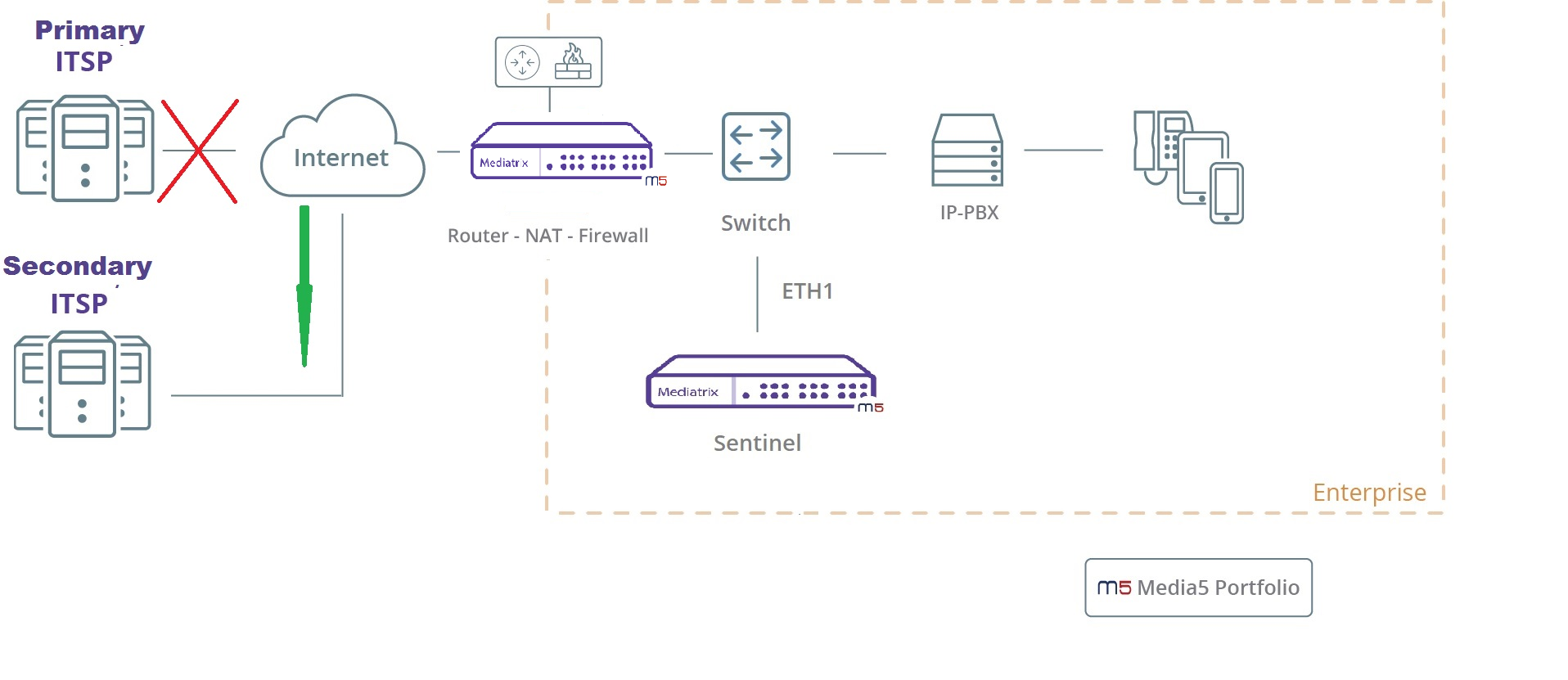
This scenario describes how to configure a Sentinel, so that calls failover to the Secondary SIP Server / ITSP when the Primary SIP service provider is unreachable.
- The Sentinel unit is located in the LAN, behind a Near-End NAT.
- Only port ETH1 is used.
- The Sentinel unit is set as a Demarcation point.
- The Sentinel unit may or may not register to the SIP service provider.
- The Sentinel unit is polling/monitoring both Service Providers to ensure they are reachable.
- When the Main/Primary SIP Provider gets unreachable, calls go through the Secondary SIP service Provider.
- During failover scenarios, when the Main/Primary SIP Provider gets reachable again, calls are falling back to the Main/Primary service Provider.
- For more details on the Sbc service, refer to the Sbc service guide published on the Media5 documentation portal at https://documentation.media5corp.com
Top
Configuring Black listing in the wan_ip_trunk_ca Call Agent
- Go to SBC/Configuration.
-
In the Call Agent Configuration table, click
 next to
wan_ip_trunk_ca.
next to
wan_ip_trunk_ca.
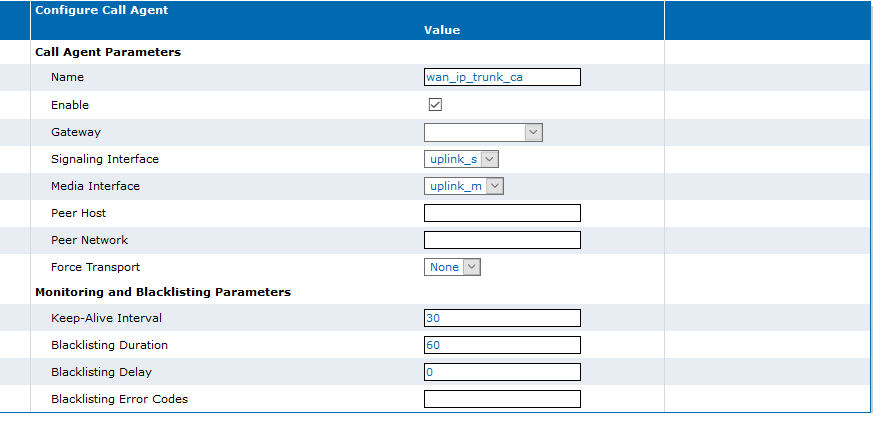
- In the Configure Call Agent table, set the Keep-Alive Interval field to 30.
- Set the Blacklisting Duration to 60.
- In the Blacklisting Error Codes field, enter the SIP codes (comma-separated) that will make the Sentinel mark the SIP server as unreachable.
- Click Save.
- Click Apply.
Top
Configuring the secondary_ip_trunk_ca Call Agent
-
In the Call Agent Configuration
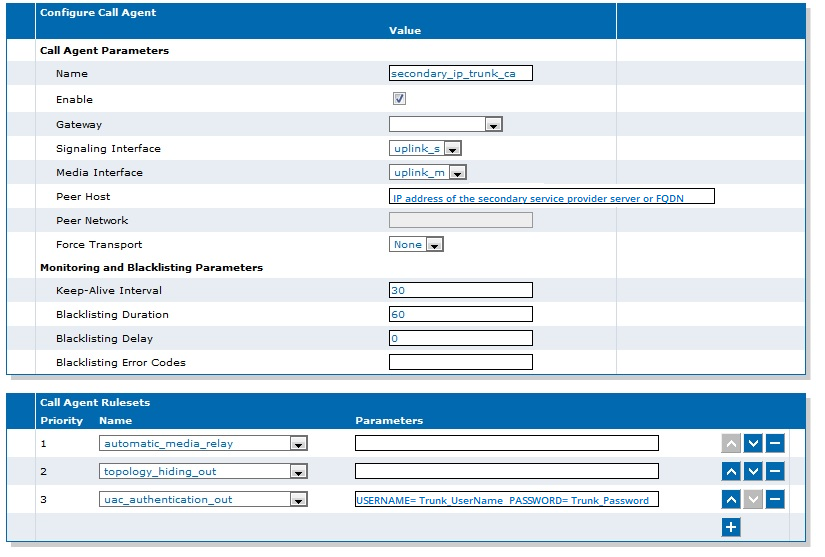
table, click next to secondary_ip_trunk_ca.
-
In the Call Agent Rulesets table,
click
 .
Note:Ignore the Invalid configuration and Unknown ruleset warnings, as they will disappear when the configuration is saved.
.
Note:Ignore the Invalid configuration and Unknown ruleset warnings, as they will disappear when the configuration is saved. -
If your Secondary SIP trunk requires authentication, click .
-
If your Secondary SIP trunk requires authentication, click .
Top
Configuring a Registration Agent for the Secondary Sip Server (Optional)
-
In the Registration Agent Configuration table, click .
Note:A new line of fields is added.
Top
Importing Rulesets

Top
Associating Routing Rulesets to Your Configuration
- Go to SBC/Configuration
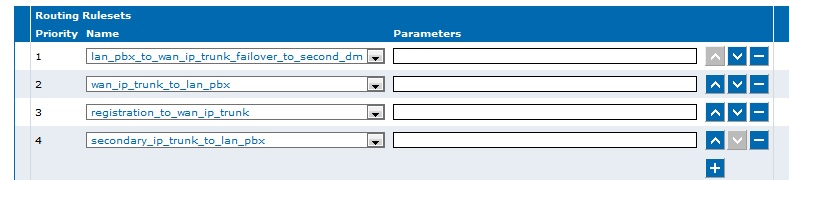
- In the Routing Rulesets table, from the Name selection list, replace the lan_pbx_to_wan_ip_trunk_dm with the lan_pbx_to_wan_ip_trunk_failover_to_second_dm ruleset.
-
Click .
-
From the Name
selection list,
- Replace registration_to_wan_ip_trunk ruleset with
- registration_to_wan_ip_trunk_failover_to_second .
-
Click .
- From the Name selection list, select secondary_ip_trunk_to_lan_pbx.
- Click Save.
- Click Apply to apply all changes to the configuration.
Top
Online Help
If you are not familiar with the meaning of the fields and buttons, click Show Help, located at the upper right corner of the Web page. When activated, the fields and buttons that offer online help will change to green and if you hover over them, the description will bedisplayed.
Top
Copyright Notice
Copyright © 2026 Media5 Corporation.
This document contains information that is proprietary to Media5 Corporation.
Media5 Corporation reserves all rights to this document as well as to the Intellectual Property of the document and the technology and know-how that it includes and represents.
This publication cannot be reproduced, neither in whole nor in part, in any form whatsoever, without written prior approval by Media5 Corporation.
Media5 Corporation reserves the right to revise this publication and make changes at any time and without the obligation to notify any person and/or entity of such revisions and/or changes.