Top
Information to Know Before Starting
Before starting to use these configuration notes, complete the following table to make sure you have the required information to complete the different steps.
| Information | Value | Used in Step |
|---|---|---|
IP address at which the Web interface of your Mediatrix unit can be reached.
|
Use this value 192.168.0.10 | Logging on to the Mediatrix Unit Web Interface |
|
Logging on to the Mediatrix Unit Web Interface | |
| Static IP address as defined in your network address range. | Configuring the Uplink Network Interface to a static IP address | |
| Address of each SNTP server. | Configuring the SNTP Server to a Static IP Address | |
| Static Default Router IP address for the Uplink Network Interface. | Configuring the Default Network Gateway to a Static IP Address | |
| IP address of each DNS server. | Configuring the Domain Name Server (DNS) | |
| MAC address of unit | Locating the MAC Address of Your Mediatrix Unit | |
| SIP Server IP Address or FQDN of the SIP server | Configuring the Default SIP Servers | |
| IP address or FQDN of server to monitor | Configuring the SipProxy Service | |
| Sip Proxy licence key | Activating a Licence Using the Web Interface |
Top
Short_Dialing Transformation Rule
The Short_Dialing transformation rule allows using short extension numbers when in survivability mode, instead of dialing the full destination number.
For example, to transform extensions 1100-1199 into 18885551100-99, it is possible to set the Criteria to (11..) and the Pattern to 1888555\1. However, if it is left to the default values, the rule has no effect since it tries to match a phone number that contains "XXXX".
Top
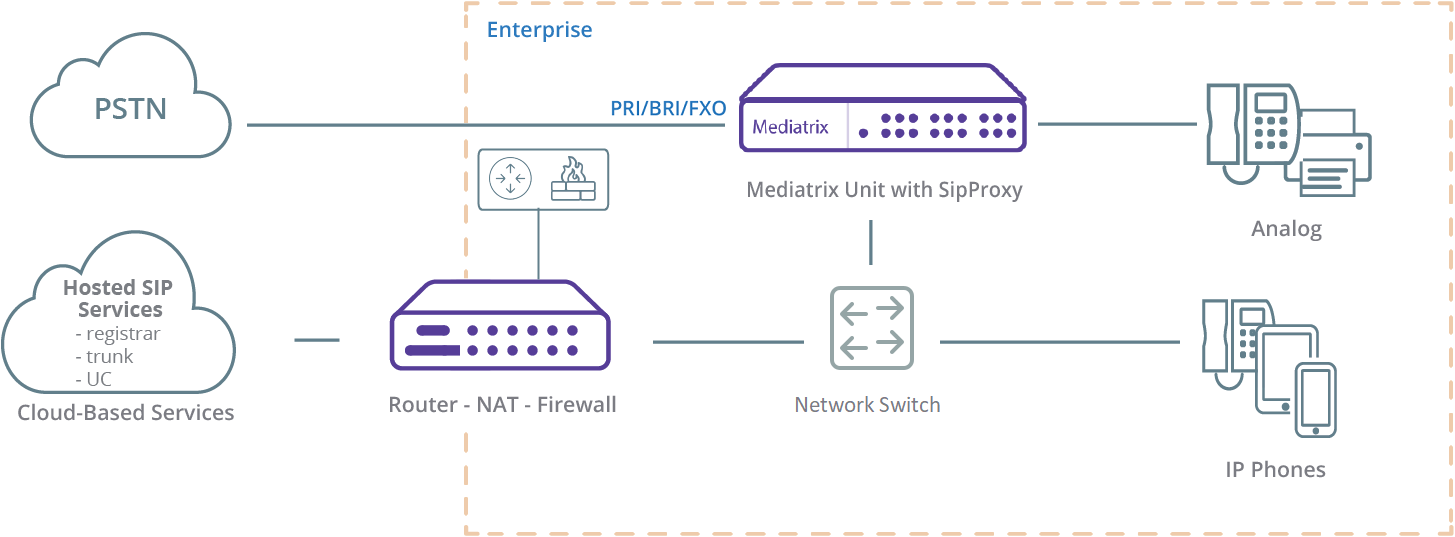
Survivability with PSTN Fallback for Cloud Based SIP Services - DGW 2.0 SipProxy Survivability
- When the Hosted SIP service fails, internal calls go through the SipProxy.
- When the Hosted SIP service fails, PSTN calls go through the SipProxy, and are internally routed to the telephony interfaces.
- In survivability situations, when the Hosted SIP services comes back online, the Mediatrix unit must wait for a REGISTER to go through before sending the calls to the SIP trunk.
- The Mediatrix unit is located in the LAN, behind a Near-End NAT.
Top
Logging on to the Mediatrix Unit Web Interface
Top
Locating the MAC Address of Your Mediatrix Unit
- printed on a label located under the Mediatrix unit
- displayed in the Current Status table of the Web Interface (System/Information)
Top
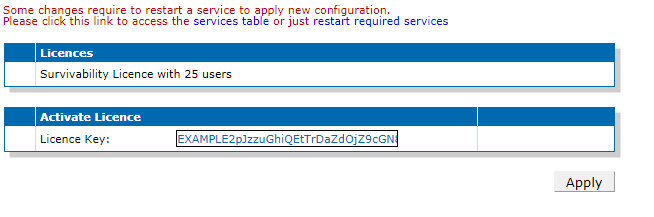
Activating a Licence Using the Web Interface
Top
Setting the Automatic IPv4 Configuration to the Uplink Network Interface
- Go to Network/Host.
- In the Automatic Configuration Interface table, select Uplink from the selection list located on the same line as Automatic IPv4 config source network.
- Click Apply.

Top
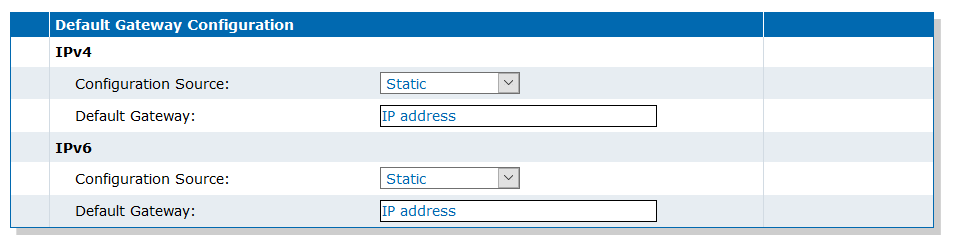
Configuring the Default Network Gateway to a Static IP Address
- Go to Network/Host.
- In the Default Gateway Configuration table, from the IPv4/Configuration Source selection list, select Static.
- In the IPv4/Default Gateway field, enter the IP address used as the Static Default Router for the Uplink Network Interface.
- In the Default Gateway Configuration table, from the IPv6/Configuration Source selection list, select Static.
- In the IPv6/Default Gateway field, enter the IP address used as the Static Default Router for the Uplink Network Interface.
- Click Apply.
Top
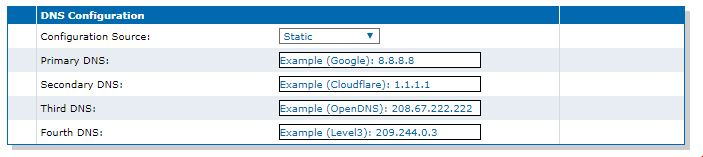
Configuring the Domain Name Server (DNS)
- Go to Network/Host.
- In the DNS Configuration table, form the Configuration Source selection list, select Static.
- For each DNS used, enter the IP address of the DNS.
- Click Apply.
Top
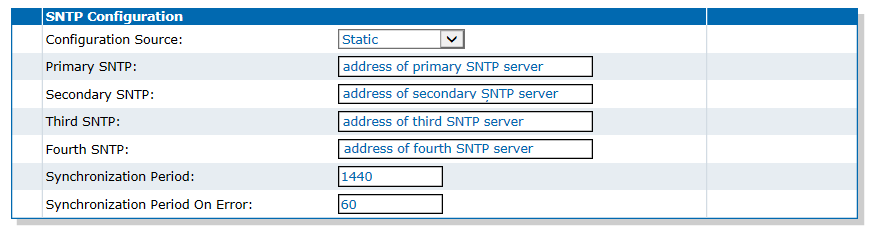
Configuring the SNTP Server to a Static IP Address
Top
Configuring the Uplink Network Interface to a static IP address

Top
Configuring the Default SIP Servers

Top
Registering Endpoints to the Default Gateway

Top
Setting the SIP Authentication
- Go to SIP/Authentication.
- Click Edit All Entries.
- In the Authentication table, enter the credentials for each port.
- Click Apply and Refresh Registration.
- Validate if endpoints are registered. (SIP/Registrations).

Top
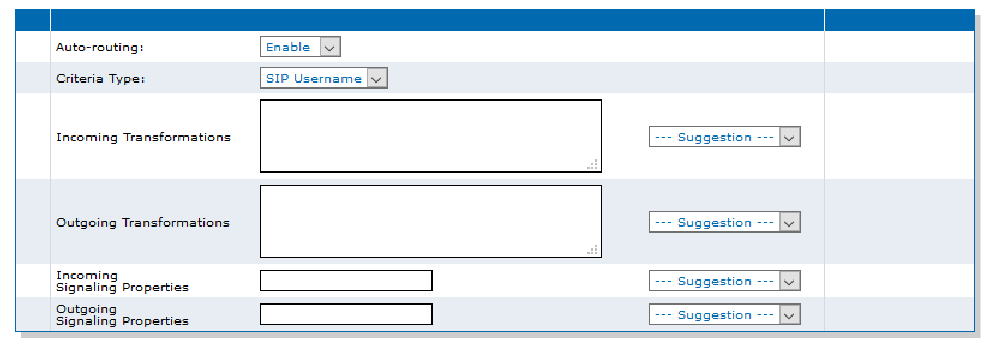
Setting Auto-Routing to Use SIP Usernames
- Go to Call Router/Auto-Routing.
- From the Auto-Routing selection list, select Enable.
- From the Criteria Type selection list, select SIP Username.
- Click Apply.
Top
Configuring the LAN SIP Clients to Operate without the Mediatrix Unit
Top
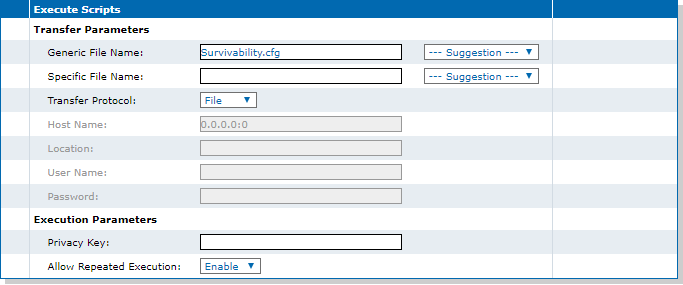
Executing the SipProxy Configuration Script
Top
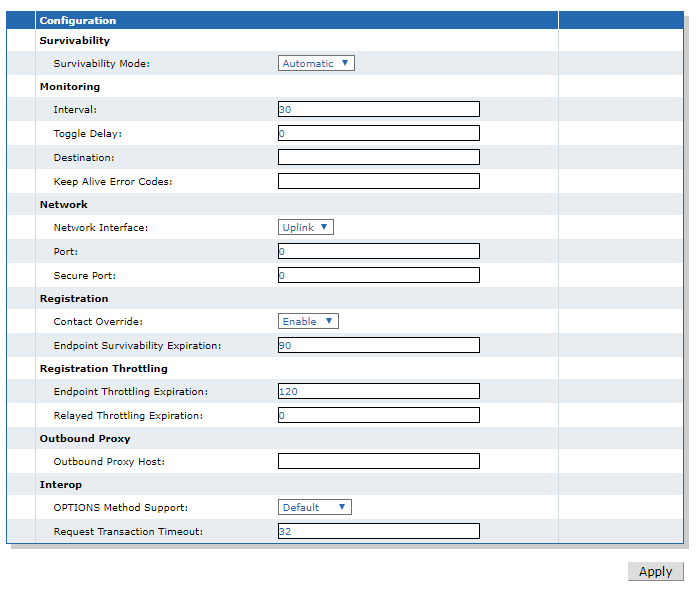
Configuring the SipProxy Service
Top
Modifying the Short Dialing Transformation Rule
-
In the User Transformations table,
at the right of the Short_Dialing row, click
 .
.

Top
Configuring the Outbound SIP Proxy for the LAN SIP Clients to Send the SIP Traffic to the Mediatrix Unit
- Set the Outbound SIP Proxy server to the Mediatrix unit IP address.
- Validate that the SIP clients are correctly registered.
- Make calls between all SIP clients in the LAN.
Top
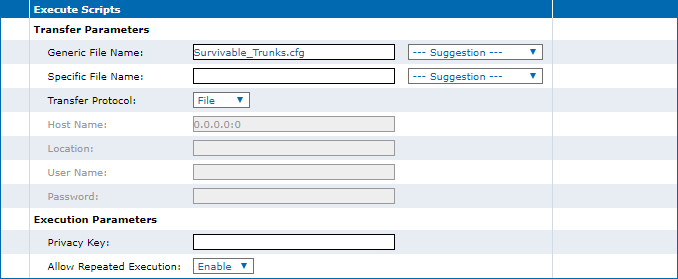
Executing the Survivable Trunks Configuration Script
Top
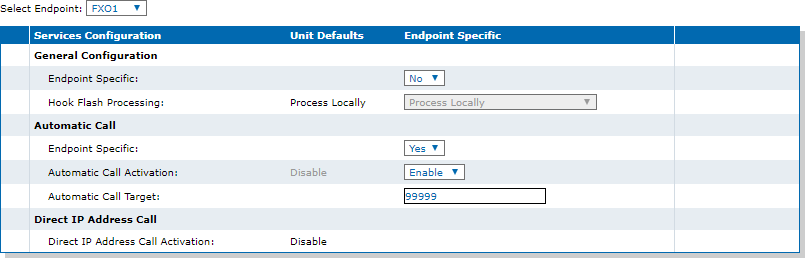
Customising the FXO Automatic Calls
Top
Modifying the Target Extension Transformation Rule
-
In the Target_Extension row, at the User Transformations table,
click .

Top
Configuring the Survivability PSTN Outbound Route
-
In the Routes table,
click located on the last route.

Top
Modifying the PSTN Prefix Transformation Rule
-
In the Remove_PSTN_Prefix row, at the User Transformations table,
click .

Top
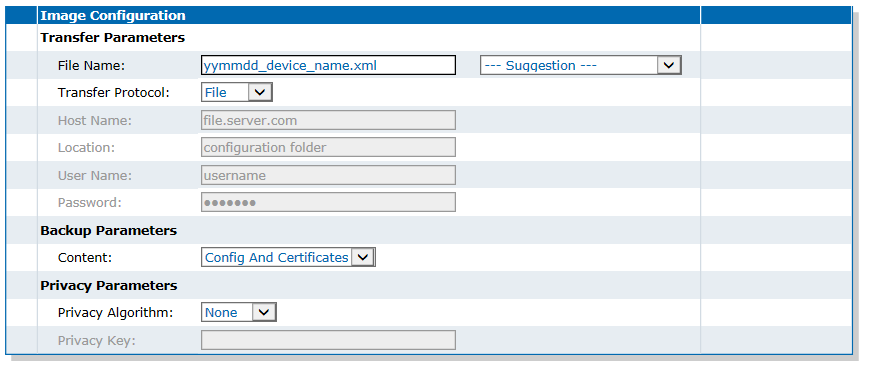
Performing a Configuration Backup to the Unit File Management System
Top
Online Help
If you are not familiar with the meaning of the fields and buttons, click Show Help, located at the upper right corner of the Web page. When activated, the fields and buttons that offer online help will change to green and if you hover over them, the description will bedisplayed.
Top
Available Documentation
Top
Copyright Notice
Copyright © 2026 Media5 Corporation.
This document contains information that is proprietary to Media5 Corporation.
Media5 Corporation reserves all rights to this document as well as to the Intellectual Property of the document and the technology and know-how that it includes and represents.
This publication cannot be reproduced, neither in whole nor in part, in any form whatsoever, without written prior approval by Media5 Corporation.
Media5 Corporation reserves the right to revise this publication and make changes at any time and without the obligation to notify any person and/or entity of such revisions and/or changes.